“I lost my WordPress admin / Divi editor. How do I update my site now?”
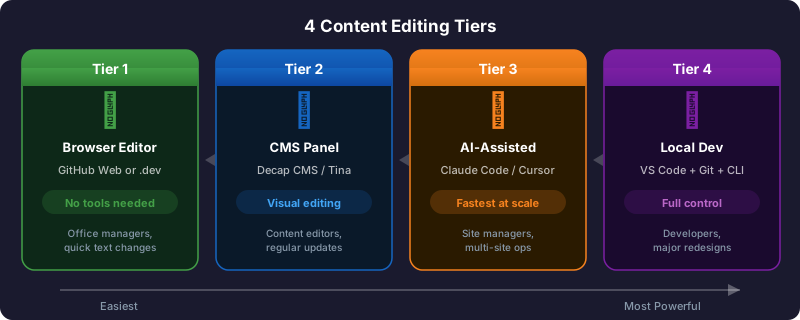
This is the number one concern when moving from WordPress to Cloudflare Pages. The answer: you have 4 options , ranging from zero-tools-needed to full developer workflow. Pick the one that fits your team — or mix and match.
Tier 1: Browser-Based Editing
No tools needed Skill Level: Basic computer skills
Tools: Web browser only
Best For: Quick text and image changes
Edit files directly in GitHub.com — no software to install, no command line, no Git knowledge. Just log in, find the file, change the text, and save.
Tier 2: Astro + CMS Panel
No tools needed Skill Level: Non-technical
Tools: Web browser only
Best For: Regular content updates
A WordPress-like admin panel for your static site. Non-technical staff log in, see a familiar editor, make changes, and publish — just like WordPress.
Tier 3: AI-Assisted Editing
Fastest at scale Skill Level: Can describe changes in English
Tools: AI tool (Claude Code, Cursor, etc.)
Best For: Any change, any scale
Tell an AI what you want changed. It reads the code, makes the edit, tests it, and deploys. You never touch HTML or Git.
Tier 4: Local Development
Maximum control Skill Level: Developer
Tools: Code editor, Git, CLI
Best For: Major redesigns, new features
The full developer workflow: clone the repo, edit locally, test, commit, push, deploy.
Moving from WordPress is a real adjustment. If your team is accustomed to Divi’s drag-and-drop builder, there is no direct equivalent on Cloudflare Pages. Here’s the reality:
Tier 1 (Browser editing) requires editing raw HTML in GitHub. Non-technical users will find this significantly harder than WordPress.Tier 2 (CMS panel) provides a WordPress-like experience but only works with Astro sites, not plain HTML migrations.Tier 3 (AI-assisted) is the best option for teams with 10+ designers/developers. Tools like Claude Code, Cursor, Codex, Gemini, Kimi, and Antigravity can handle edits conversationally — but require initial setup and comfort with AI tools.Tier 4 (Local dev) is developer-only. For sites that are “set and forget” (updated quarterly) , any tier works fine. For sites with weekly content updates , invest in Tier 2 (CMS panel) or Tier 3 (AI tools) for the team.
How long does each approach take for common tasks?
Scenario WordPress/Divi Tier 1: Browser Tier 2: CMS Tier 3: AI Tier 4: Local Dev Change phone number 2 min 5 min 3 min 2 min 15 min Update hero image 5 min 8 min 5 min 3 min 15 min Edit service description 3 min 5 min 3 min 2 min 15 min Add new page 15 min 20 min 10 min 5 min 20 min Redesign a section 1-2 hrs 1-2 hrs 1 hr 30-60 min 1-2 hrs Update across 10 sites 20 min 50 min 30 min 5 min 2.5 hrs Update across 100 sites 3.3 hrs 8.3 hrs 5 hrs 15 min 25 hrs
Edit files directly in GitHub.com or the Cloudflare Dashboard — no software to install, no command line, no Git knowledge needed. Just a web browser.
Office managers updating a phone number
Marketing staff updating text content
Anyone with a web browser and account access
Can log into a website
Can find text in a file (Ctrl/Cmd+F)
Can type
Navigate to the file
Go to https://github.com/your-org/your-repo and click into the folder structure: public/ > page-name/ > index.html
Edit the file
Click the pencil icon (Edit this file) in the top-right. Use Ctrl+F (or Cmd+F on Mac) to search for the text you want to change. Make your edit.
Example: Find 408-865-1777, replace with 408-123-4567
Save (commit)
Scroll down to “Commit changes.” Write a short description like “Updated phone number.” Select “Commit directly to the main branch” and click Commit changes .
Auto-deploy
Cloudflare Pages detects the commit and automatically builds and deploys (1-2 minutes). Your change is live.
That is it. No terminal, no downloads, no Git commands.
Pros:
Zero tools to install
Works from any computer or tablet
Full version history (every edit saved)
Can revert any change
Cons:
Editing raw HTML (need to know not to break tags)
No visual preview before deploying
Must know which file to edit
Not ideal for large changes
Go to dash.cloudflare.com
Navigate to Pages > Your Project
Use the deployment preview to verify changes
For direct edits, use the Functions editor (for form/API changes)
Go to any file in your GitHub repository
Press the . key (period) on your keyboard
A full VS Code editor opens in your browser
Edit files with syntax highlighting, search/replace, multi-file editing
Commit changes from the Source Control panel (left sidebar)
Changes auto-deploy to Cloudflare Pages
This gives you:
Full code editor experience
Multi-file editing (change header across all pages)
Search and replace across the project
File tree navigation
Syntax highlighting
No downloads needed
flowchart TD
    A["Open GitHub.com<br/>(or press '.' for VS Code editor)"] --> B["Navigate to file, click Edit"]
    B --> C["Find text with Ctrl+F, make change"]
    C --> D["Commit: 'Updated phone number'"]
    D --> E["Cloudflare auto-deploys (1-2 min)"]
    E --> F["Change is live"]
Only change text between > and < tags
Use Ctrl+F to find exactly what you are changing
Write a clear commit message
Make one change per commit (easier to revert if something breaks)
Delete or modify HTML tags (<div>, <span>, etc.)
Change anything inside <script> or <style> tags
Remove quotes from attributes
Edit multiple things in one commit
Example safe edits:
<!-- SAFE: Changing text content -->
< h1 > Old Phone Number: 408-865-1777 </ h1 >
< h1 > New Phone Number: 408-123-4567 </ h1 >
<!-- SAFE: Changing an image URL -->
< img src = " /images/old-photo.jpg " alt = " Dr. Smith " >
< img src = " /images/new-photo.jpg " alt = " Dr. Smith " >
<!-- SAFE: Changing business hours -->
< p > Monday - Friday: 9am - 5pm </ p >
< p > Monday - Friday: 8am - 6pm </ p >
A WordPress-like admin panel for your Cloudflare Pages site. Non-technical staff log in, see a familiar editor, make changes, and publish — just like WordPress, but without WordPress.
Content editors who update sites regularly
Marketing teams managing multiple pages
Anyone who needs a visual interface
Teams transitioning from WordPress
Can use a web browser
Can fill out forms
Can upload images
Same skills as using WordPress
flowchart TD
    A["Content Editor logs into CMS panel<br/>(yoursite.com/admin/)"] --> B["Sees list of pages/posts in familiar UI<br/>Clicks 'Edit' on a page"]
    B --> C["Rich text editor (like WordPress)<br/>Change text, upload images, modify metadata"]
    C --> D["Clicks 'Publish'<br/>CMS commits to GitHub automatically"]
    D --> E["Cloudflare Pages auto-deploys (1-2 min)"]
    E --> F["Change is live"]
Free
Open Source
Why Decap CMS:
Free and open source
Git-based (changes stored in GitHub, not a separate database)
Simple admin panel at yoursite.com/admin/
Works with Astro out of the box
No external service dependency
No monthly cost
What it looks like:
Login page at /admin/
Dashboard showing pages and blog posts
Rich text editor for each page
Image upload and media library
Publish button that triggers deploy
Install the package:
npm install @astrojs/decap-cms
Add the admin page. Create public/admin/index.html:
< meta name = " viewport " content = " width=device-width, initial-scale=1.0 " />
< title > Content Manager </ title >
< script src = " https://unpkg.com/decap-cms@^3.0.0/dist/decap-cms.js " ></ script >
Configure content types. Create public/admin/config.yml:
media_folder : " public/images "
folder : " src/content/pages "
- { label : " Title " , name : " title " , widget : " string " }
- { label : " Description " , name : " description " , widget : " text " }
- { label : " Hero Image " , name : " heroImage " , widget : " image " }
- { label : " Body " , name : " body " , widget : " markdown " }
- { label : " Phone " , name : " phone " , widget : " string " }
- { label : " Address " , name : " address " , widget : " text " }
folder : " src/content/services "
- { label : " Service Name " , name : " title " , widget : " string " }
- { label : " Description " , name : " description " , widget : " text " }
- { label : " Image " , name : " image " , widget : " image " }
- { label : " Price " , name : " price " , widget : " string " , required : false }
- { label : " Body " , name : " body " , widget : " markdown " }
folder : " src/content/blog "
- { label : " Title " , name : " title " , widget : " string " }
- { label : " Date " , name : " date " , widget : " datetime " }
- { label : " Author " , name : " author " , widget : " string " }
- { label : " Featured Image " , name : " image " , widget : " image " }
- { label : " Body " , name : " body " , widget : " markdown " }
Content editors visit /admin/ — log in with GitHub account, see pages, services, and blog posts, click to edit any content, and publish when ready.
CMS Type Free Tier Visual Editing Setup Effort Decap CMS Git-based Unlimited (open source) Basic rich text Low Tina CMS Git-based 3 users free Visual inline editing Medium Contentful API-based 5 users, 25k records Structured content Medium Sanity API-based 3 users, 100k API calls Flexible, customizable Medium Storyblok API-based 1 user Visual drag-and-drop Medium
For medical practice sites (5-20 pages, occasional updates): Decap CMS is the right choice. Free, simple, no external dependencies.
For larger operations (50+ content editors): Consider Contentful or Sanity.
Tell an AI tool what you want changed. The AI reads the code, makes the edit, tests it, and deploys. You never touch HTML or Git.
Site managers overseeing multiple sites
Anyone who can describe changes in plain English
Teams managing 10-300+ sites at scale
People who want the fastest workflow
Can describe what you want in words
Can review a change to confirm it looks right
You say:
“Change the phone number on the Body Intimacy landing page from 408-865-1777 to 408-999-0000”
AI does:
Opens the correct HTML file
Finds the phone number
Changes it in all locations
Tests the page locally
Deploys to Cloudflare Pages
Confirms the change is live
Total time: 2 minutes. Zero HTML knowledge required.
Tool Cost How It Works Best For Claude Code (CLI) $20/mo (Pro) or $100/mo (Max) Terminal-based, reads/edits files directly Developers, power users Cursor $20/month VS Code fork with AI built in Developers GitHub Copilot $10-19/month AI in VS Code/GitHub Developers ChatGPT + copy/paste $20/month Give it the HTML, get back edited HTML Non-developers Claude.ai + copy/paste $20/month Give it the HTML, get back edited HTML Non-developers
You tell Claude Code:
Change the phone number on our Riverside landing page
from 951-555-1234 to 951-555-5678.
The file is at public/laser-treatment-riverside/index.html
Claude Code:
Reads the file
Finds 3 occurrences of the phone number
Replaces all 3
Shows you the diff
You approve
Deploys: npm run deploy
You tell Claude Code:
I need to update the business hours across all landing pages.
Old: Monday - Friday: 9am - 5pm
New: Monday - Friday: 8am - 6pm, Saturday: 9am - 1pm
Update every index.html in every subdirectory under public/
Claude Code:
Finds all index.html files
Updates each one
Shows you the changes
Deploys
At 300 sites, this takes 15 minutes instead of 5+ hours.
You tell Claude Code:
Add a "Special Offer" banner at the top of the Vitalia page.
It should be a gold background with white text that says:
"Limited Time: 20% Off All Treatments - Call 408-865-1777"
Make it match the existing page style.
Claude Code:
Reads the existing page
Analyzes the design style
Creates matching HTML/CSS
Inserts it at the top
Shows you a preview
You approve or request changes
You tell Claude Code:
Add a "Preferred appointment date" field to the contact form
on both landing pages. It should be a date picker.
Also update the email handler to include this field.
Claude Code:
Adds date input to both HTML forms
Updates form-handler.js to include the new field
Updates functions/api/submit-form.js to extract and email the new field
Tests locally
Deploys
Operation Manual (per site) AI (per site) 100 Sites Manual 100 Sites AI Phone number change 5 min 30 sec 8.3 hrs 50 min Image swap 10 min 1 min 16.6 hrs 1.6 hrs Add tracking script 15 min 1 min 25 hrs 1.6 hrs Hours update 5 min 30 sec 8.3 hrs 50 min New page 30 min 5 min 50 hrs 8.3 hrs
# Install Claude Code CLI
npm install -g @anthropic-ai/claude-code
cd /path/to/your/cloudflare-project
> " Change the hero heading to 'Welcome to Our Practice' "
Download Cursor from cursor.sh
Open your project folder
Select text you want to change
Press Ctrl+K and describe the change
Review and accept
Copy the HTML file content
Paste into ChatGPT or Claude
Say: “Change the phone number from X to Y”
Copy the updated HTML back
Paste into GitHub web editor
Commit
Review changes before deploying
Test on staging/preview first for big changes
Keep the AI focused on one change at a time
Describe changes clearly and specifically
Let AI make changes without review
Make sweeping changes across all sites without testing one first
Share API keys or sensitive data with AI
The full developer workflow: clone the repo, edit in a code editor, test locally, commit, push, deploy. Maximum control and flexibility.
Developers making significant changes
Major redesigns or new feature development
Custom Cloudflare Functions development
Performance optimization work
HTML/CSS/JavaScript
Git (commit, push, pull)
Command line basics
Node.js/npm
flowchart TD
    A["Clone/pull latest code<br/>git pull origin main"] --> B["Start local dev server<br/>npm run serve (port 8788)"]
    B --> C["Edit files in code editor (VS Code)<br/>HTML, CSS, JavaScript, Functions, Config"]
    C --> D["Test locally<br/>Browse http://localhost:8788/<br/>Test forms, test on mobile (DevTools)"]
    D --> E["Commit and push<br/>git add . && git commit && git push"]
    E --> F{"GitHub connected?"}
    F -->|Yes| G["Auto-deploy"]
    F -->|No| H["Manual deploy: npm run deploy"]
    G --> I["Verify on staging/production"]
    H --> I
git clone https://github.com/your-org/your-repo.git
# Browse to http://localhost:8788/
# Make changes in VS Code
Scenario Use Tier 4? Change a phone number No — use Tier 1 or 3 Add a new landing page Maybe — Tier 3 or 4 Redesign the homepage Yes Add a new form with custom fields Yes Implement a new Cloudflare Function Yes Performance optimization Yes Fix a broken page Yes (or Tier 3) Batch template changes No — use Tier 3 (AI)
flowchart TD
    Start["Who is making the change?"] --> A["Office Manager /<br/>Non-technical Staff"]
    Start --> B["Marketing Team"]
    Start --> C["Site Manager<br/>(multiple sites)"]
    Start --> D["Developer"]

    A --> A1{"CMS panel set up?"}
    A1 -->|Yes| A2["Tier 2: CMS"]
    A1 -->|No| A3["Tier 1: Browser<br/>or Tier 3: AI via copy/paste"]
    A --> A4{"What kind of change?"}
    A4 -->|"Text / phone / hours"| A5["Tier 1 or 2"]
    A4 -->|"New page"| A6["Tier 2"]
    A4 -->|"Complex change"| A7["Escalate to developer"]

    B -->|"Quick content update"| B1["Tier 1 or 2"]
    B -->|"Add tracking script"| B2["Tier 3 (AI) or Tier 4"]
    B -->|"New campaign page"| B3["Tier 2 (CMS) or Tier 4"]

    C -->|"Update across sites"| C1["Tier 3: AI"]
    C -->|"Single site update"| C2["Tier 1 or 2"]
    C -->|"Batch operations"| C3["Tier 3: AI"]

    D -->|"Quick fix"| D1["Tier 1 or Tier 3"]
    D -->|"New feature"| D2["Tier 4"]
    D -->|"Performance work"| D3["Tier 4"]
    D -->|"Code refactoring"| D4["Tier 4"]
Role Primary Tier Backup Tier Office Manager Tier 2 (CMS) Tier 1 (Browser) Marketing Staff Tier 2 (CMS) Tier 1 (Browser) Content Writer Tier 2 (CMS) Tier 1 (Browser) Site Manager (multi-site) Tier 3 (AI) Tier 1 (Browser) Designer Tier 4 (Local Dev) Tier 3 (AI) Developer Tier 4 (Local Dev) Tier 3 (AI) Agency Owner Tier 3 (AI) Tier 2 (CMS)
Go to yoursite.com/wp-admin
Log in
Open page in Divi Builder (wait for it to load…)
Find the phone number text module
Click it, change the number
Click Save
Clear cache (WP Rocket, etc.)
Verify on frontend
Go to github.com/your-org/your-repo
Navigate to the HTML file
Click edit (pencil icon)
Ctrl+F, find phone number, change it
Commit
Auto-deploys in 1-2 minutes
Go to yoursite.com/admin
Log in
Click the page
Change the phone field
Click Publish
Auto-deploys in 1-2 minutes
Open Claude Code
Say: “Change phone number to 408-999-0000”
Review, approve
Deployed
1-5 Sites
Tier 1 (Browser) for quick editsTier 4 (Local Dev) for bigger changesNo CMS needed
5-20 Sites
Tier 2 (CMS) for content editorsTier 3 (AI) for batch operationsTier 4 (Local Dev) for development 20-100 Sites
Tier 3 (AI) as primary workflowTier 2 (CMS) for individual content editorsTier 4 (Local Dev) for new features 100-300+ Sites
Tier 3 (AI) is essential — nothing else scalesTier 2 (CMS) for sites with dedicated content editorsTier 4 (Local Dev) only for new development Tier Training Time Materials Needed Tier 1 (Browser) 30 minutes This document + 10-min demo Tier 2 (CMS) 1 hour This document + CMS walkthrough Tier 3 (AI) 1-2 hours This document + AI tool setup Tier 4 (Local Dev) 1-2 days Full prerequisites + dev workflow
“What if I break something?”
Every change is version-controlled. Go to Cloudflare Pages > Deployments > Rollback to previous deployment. Takes 30 seconds.
“Can I use multiple tiers?”
Absolutely. Most teams use Tier 1 or 2 for daily content, Tier 3 for batch operations, and Tier 4 for development. Mix and match.
“What if GitHub goes down?”
GitHub has 99.9%+ uptime. If it is briefly unavailable, use Tier 4 (local + npm run deploy) to push directly to Cloudflare.
“Can non-technical people really edit HTML?”
With Tier 1, they only change text between tags — like editing a Word document with some extra symbols around it. With Tier 2 (CMS), they never see HTML at all.
“Do I need Git knowledge for Tier 1?”
No. Clicking “Commit” on GitHub is like clicking “Save” in WordPress. The version control happens automatically behind the scenes.
“Is AI editing reliable?”
For text changes, image swaps, and structured edits — yes, extremely reliable. For complex design changes, have a developer review the AI’s work.